In Document Field Extraction with Azure AI Content Understanding, I illustrated how to use Azure AI Foundry Content Understanding to extract data from complex documents using Natural Language Processing. The solution extracted course information from a Community Education course catalog into a table format by describing how to return each field.
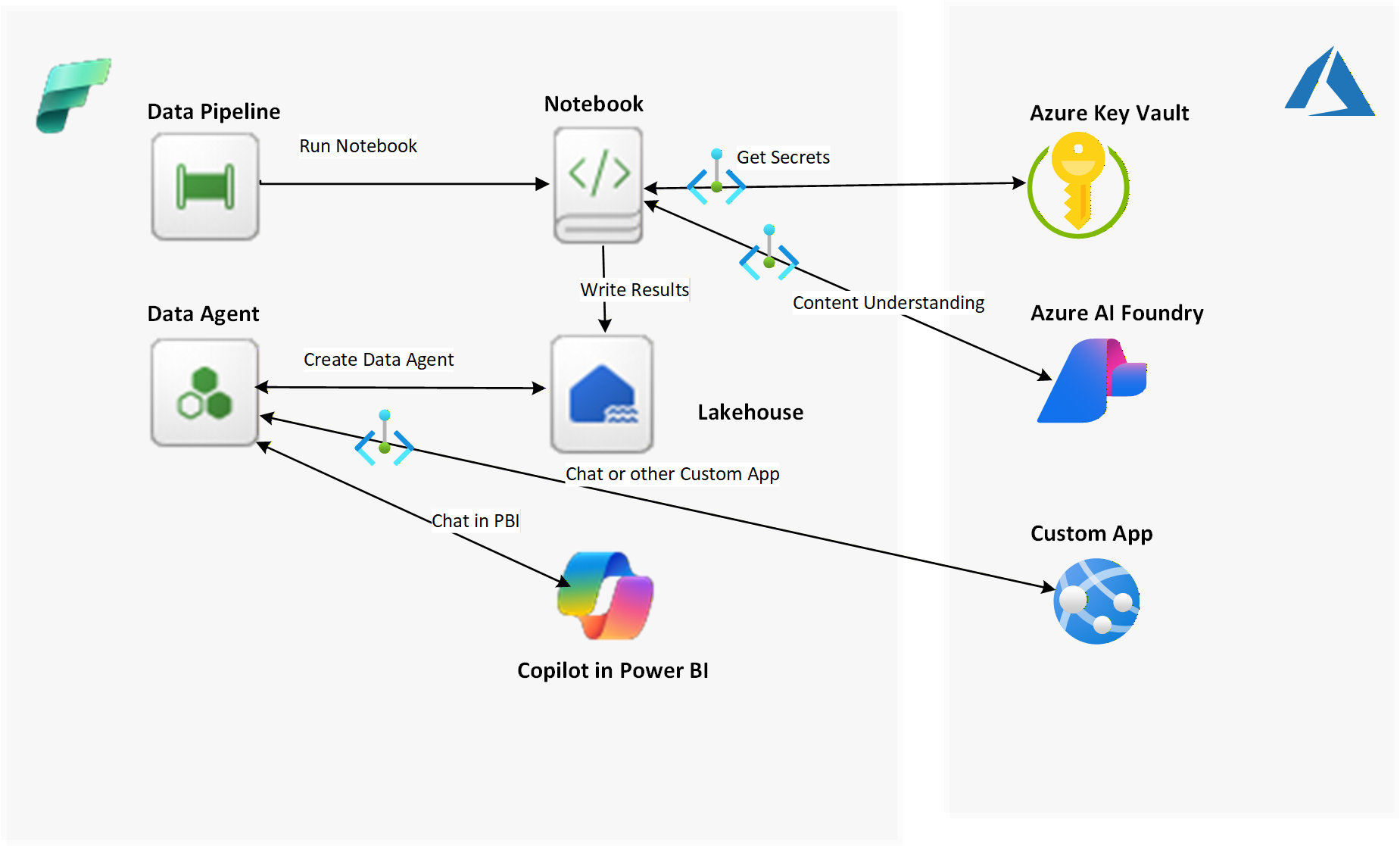
In this article, we’ll extend that solution to call the endpoint, analyze the document, and store the results using Microsoft Fabric. Fabric is ideal because it allows you to:
- Invoke Azure AI endpoints directly from a notebook
- Store results in a Fabric Lakehouse without requiring any resources to access the lakehouse or travel across the public internet
- Leverage managed private endpoints for secure access to Azure resources
- Build a conversational Q&A agent using Fabric Data Agent without deploying any new infrastructure
- Allow Power BI Copilot users to ask questions using the Fabric Data Agent
- Allow 3rd party chat/web applications to call the Fabric Data Agent
You will also learn how to:
- Securely access Azure resources with managed private endpoints
- Retrieve Azure Key Vault secrets within Fabric
- Use Variable Libraries and Pipeline Parameters to create reusable assets
- Call the Azure AI Content Understanding REST API from a Fabric notebook
- Decide when to store Fabric variables in Azure Key Vault vs Variable Libraries vs Pipeline Parameters
- Build and publish a Fabric Data Agent and integrate it with Power BI Copilot
Azure Content Understanding REST API
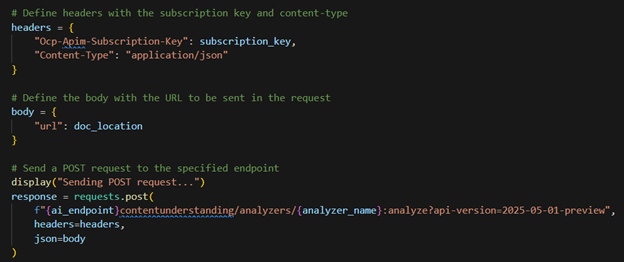
First of all, we’ll review how to call the Azure AI Content Understanding Analyzer I built in the previous article to extract course information from a community education catalog that’s in a PDF file. We’ll eventually call this from a Fabric notebook, but it is important to understand the parameter values needed. Below is an curl syntax for calling the Content Understanding REST API:
curl -i -X POST "{endpoint}/contentunderstanding/analyzers/{analyzerId}:analyze?api-version=2025-05-01-preview" \
  -H "Ocp-Apim-Subscription-Key: {key}" \
  -H "Content-Type: application/json" \
  -d "{\"url\":\"{fileUrl}\"}"
The parameters are:
- endpoint
- analyzerID
- key
- fileURL
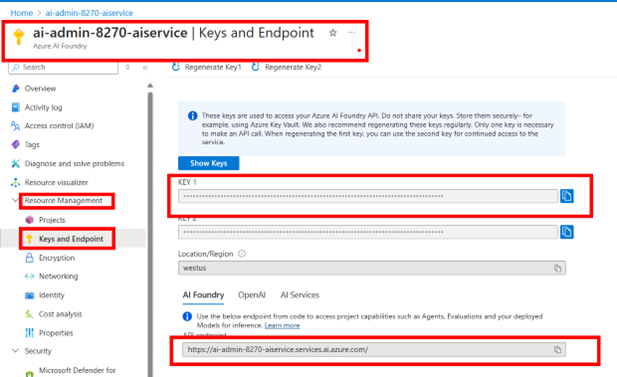
The endpoint, analyzerID, and API subscription key will be stored as Azure Key vault secrets, since these values will be the same every time we call the analyzer. Plus, it is a best practice to store sensitive information like API keys in Key vault.
The fileURL will be specified as a Fabric Pipeline parameter so we can reuse the analyzer for different catalog files when calling the pipeline.
The endpoint and API subscription key values are found in the Azure AI Foundry resource under Resource Management → Keys and Endpoint:
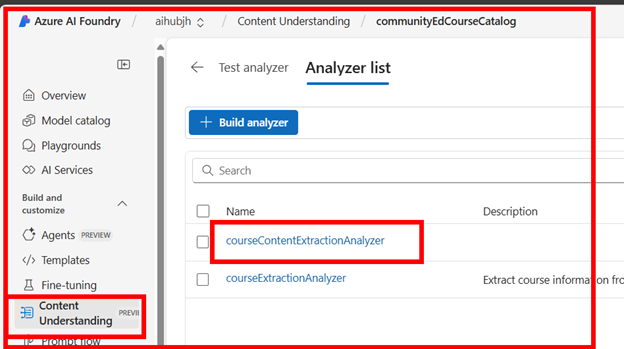
The analyzerID is the name of the analyzer you created in your AI Foundry hub:
The fileURL is the url where your file is located. In my case, it is: https://raw.githubusercontent.com/contosojh/sample-files/main/summer-catalog-10-pages.pdf
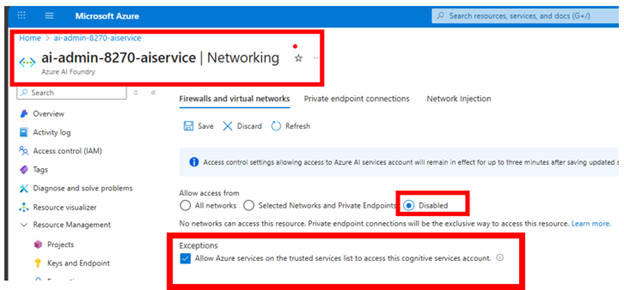
After you have gathered the information needed from Azure AI Foundry, disable public internet so it can only be accessed through the private internet or a private endpoint.
Store Secrets in Azure Key vault
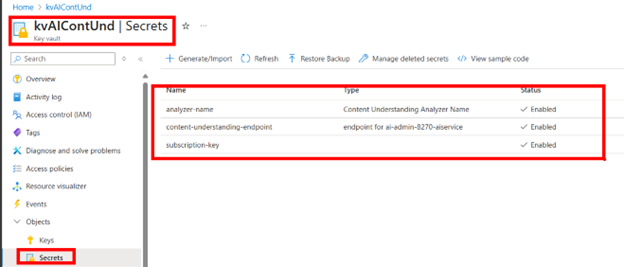
Create 3 secrets in Key vault for the endpoint, the analyzerID, and the key parameters:
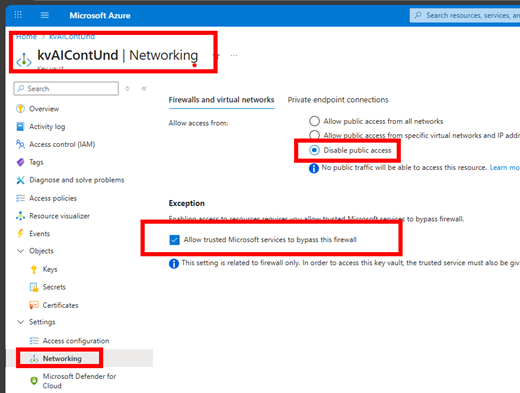
When you have completed creating your secrets, disable public access to the key vault so it will only be available over the private internet.
Create Workspace and Private Endpoints
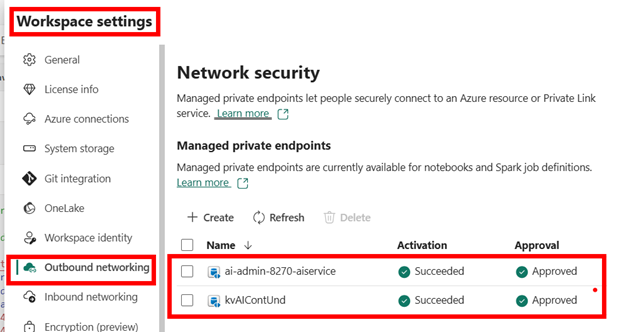
Create a new Microsoft Fabric workspace (or use an existing workspace). Open up the Workspace settings to create your private endpoints for Azure Key vault and your AI Foundry Resource. These endpoints are actually called managed private endpoints because they reside securely within Fabric. No need to create them in your own Vnet!
To create the AI Foundry managed private endpoint, go to the Azure portal, then to your Azure AI Foundry resource Overview page. Click on the JSON view on the right and copy the Resource ID.

Paste the Resource ID in the Resource identifier. Click on the drop-down box for the Target sub-resource and select Cognitive Services.
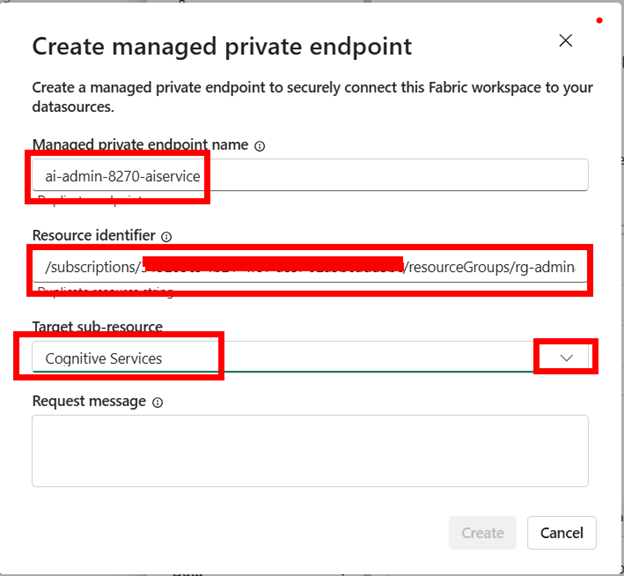
Click Create.
After the managed private endpoint is created for AI Foundry, you need to approve your private endpoint in Azure. Go back to the Azure AI Foundry resource, go to the Networking section and then to the Private endpoint connections tab. The connection state will be Pending so you will need to approve it. After it is approved, the connection state will say Approved.
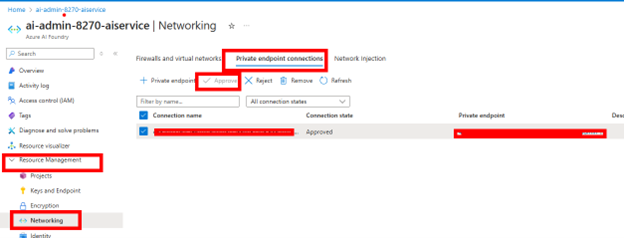
Next, create the managed private endpoint for Azure Key vault following the same steps:
- Create a new Private endpoint in the Fabric workspace settings
- Copy and paste the Azure Key Vault resource identifier
- Select Azure Key Vault as the Target sub-resource
- Go back to your Azure Key Vault and approve the private endpoint under Settings → Networking → Private endpoint connections tab
Create Lakehouse (optional)
Create a new Lakehouse if you do not want to use an existing warehouse.
Create a Notebook
📥 Download the python notebook
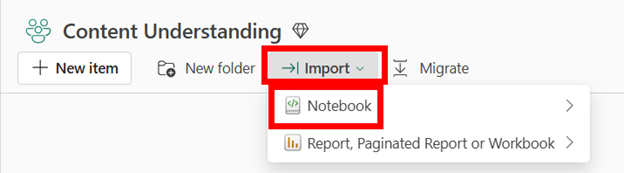
Then go to your Fabric Workspace and select Import from the top menu:
The notebook contains the parameters as shown below. These will be passed in by the Pipeline Notebook activity. To test in-line, you can replace the noted values below with your values; otherwise, you can leave as-is and when the notebook is called from the pipeline, the parameter value defaults will be replaced by the parameter values passed in.
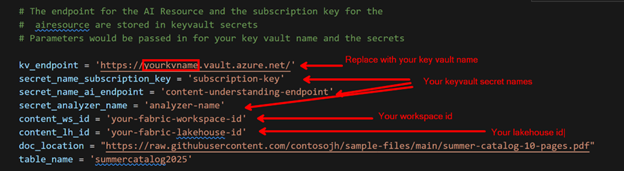
To get your workspace and lakehouse id values, navigate to your Fabric lakehouse. The workspace id is the string following /groups/ and the lakehouse id is the string following /lakehouses/:

Paste these into the parameter values for content_ws_id and content_lh_id.
Below is the code to get the key vault secrets for the API subscription key, the AI endpoint, and the analyzer name.

When you run the notebook, it will send a post request to analyze the PDF:
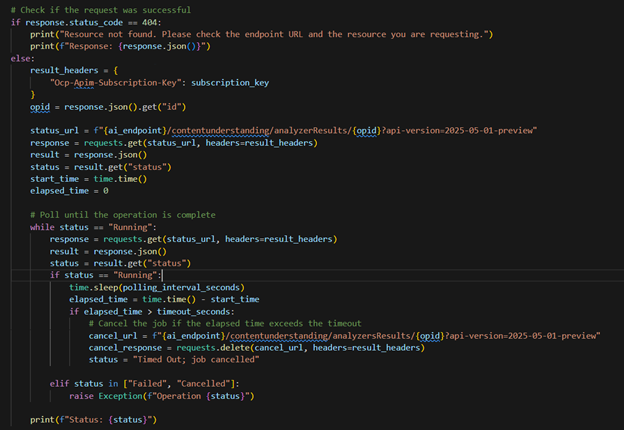
It then sends polling requests until the request has completed or exceeded the timeout value:
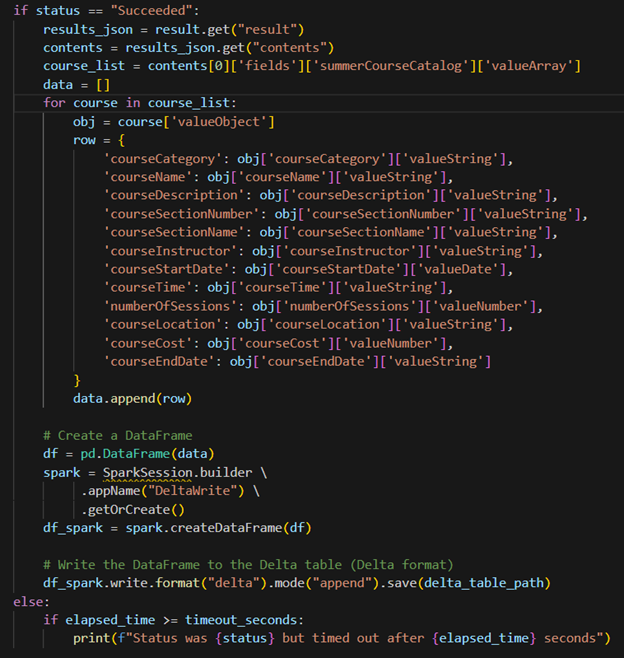
If it completes successfully, it will write/append the data to the table.
Create Variable Library
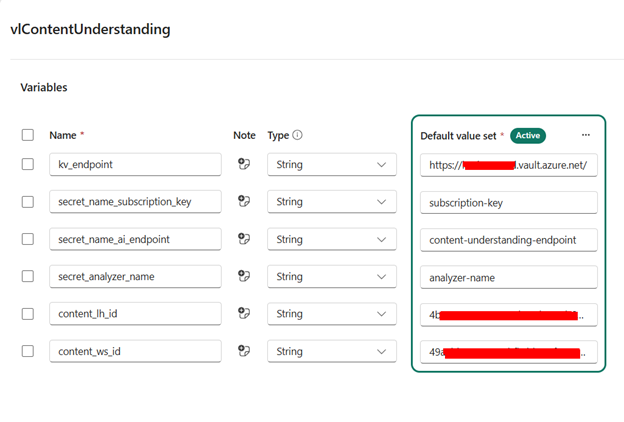
Next we’ll create a variable library. A variable library is an item in Fabric that lets you store values at the workspace level. These are commonly used for CI/CD for connection strings, lakehouse names, warehouse names, etc.— values that need to be parameterized, but should be constant at the workspace level.
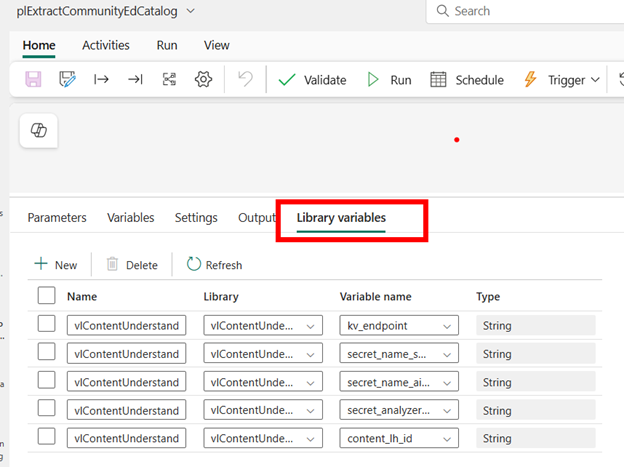
Go to your Workspace and create a new Variable Library item. Add variables and values for the Key Vault endpoint, the API subscription key secret name, the AI endpoint secret name, the analyzer name secret name, the lakehouse id, and the warehouse id.
Create Pipeline
Create a new pipeline in your workspace. This may be your simplest pipeline ever!
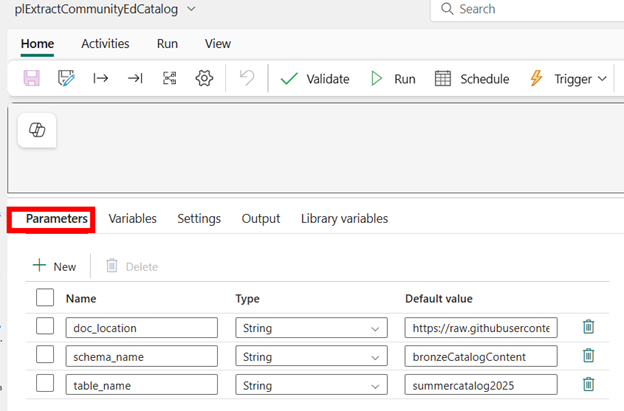
Add parameters for the document location, your lakehouse schema name, and your lakehouse table name. These are parameterized at the pipeline level to make your pipeline reusable! For example, the content analyzer was created for the Summer 2025 Community Education catalog, but the analyzer can gather information for Fall 2025, Winter 2026, etc. You also have the option to store the data in the same or in separate tables.
Go to the Library variables tab and add in the library variables you will use in this pipeline.
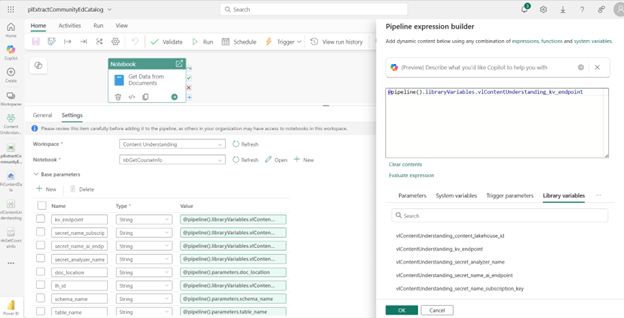
On the pipeline canvas, add a Notebook activity. Specify the workspace and notebook name. Then expand the Base parameters section and add in the parameter names used in the notebook and specify the appropriate pipeline parameter or library variable for each:
Run the Pipeline and Test the Results
Run the pipeline and validate the results by querying the lakehouse Delta table:
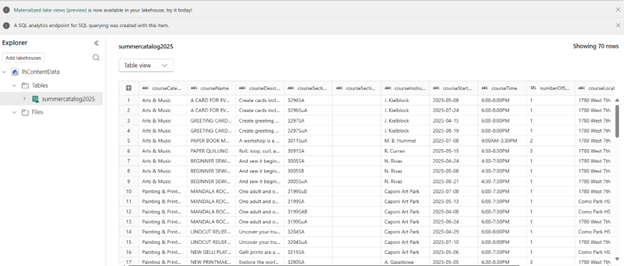
If your data returns unknown or invalid data, you can go back to the AI Content Analyzer project and refine your prompts. I did that myself because the course category was returning a lot of “Unknowns.” This was my original courseCategory description:
Above the course listings, there will be a header. It will never be the same as the CourseName. This is the courseCategory. If you can’t find the Category, specify “Unknown”
Which I changed to:
Above the course listings, there will be a header. This is the courseCategory. This will be toward the top of the page - sometimes it is listed under “Arts & Music”, but if there isn’t a category below “Arts & Music”, just use “Arts & Music”. It will never be the same as the courseName. If you can’t find the Category, first try and derive it from the other categories found. If it can’t be found or derived, specify “Unknown”.
Create, Test and Publish Data Agent
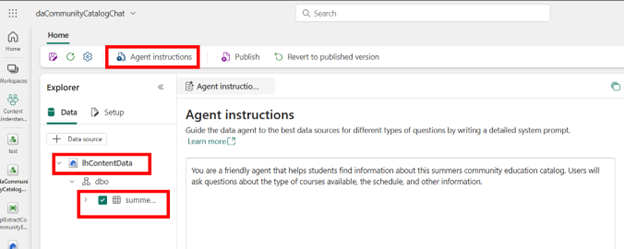
Next, add a Data Agent item to your Fabric workspace. Give it a name, add your lakehouse and table, then Agent Instructions:
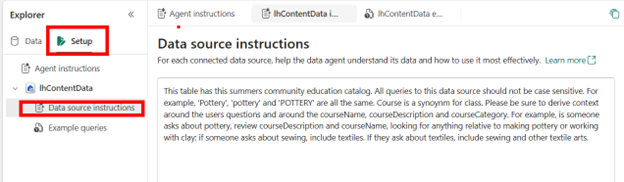
Then add instructions about your data source, the Delta Lake table. For example, delta lake string values are case sensitive, so I included that in my instructions. I also included synonyms for different fields.
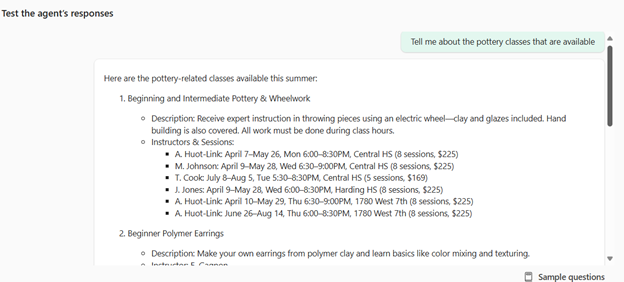
After that, I will test my agent by asking about pottery classes:
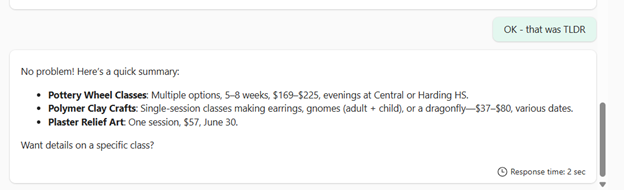
But I really just wanted a quick list:
Then I asked about classes that are out of the ordinary:
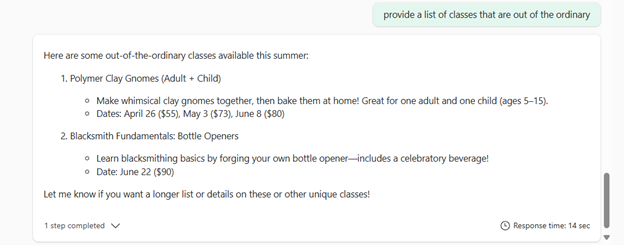
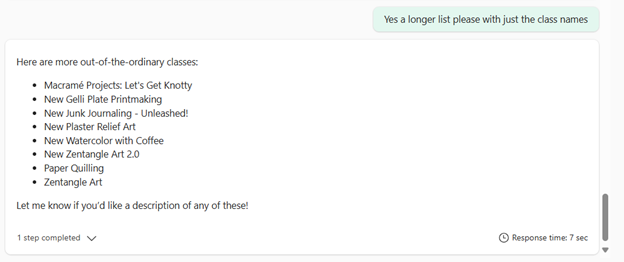
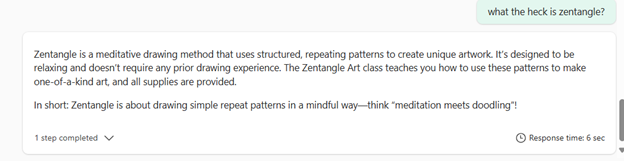
Hmmm … I then asked about what classes are available on weekends and it did not give me a response:
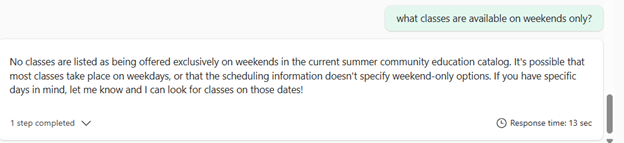
So I will tell the agent how to do it:
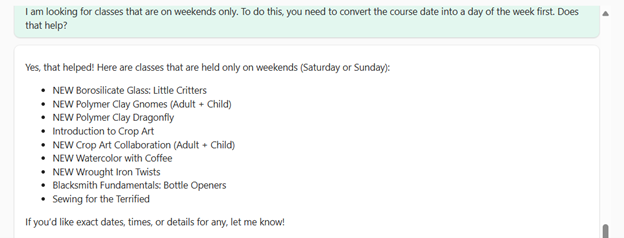
You can click under the response and see the query it ran:
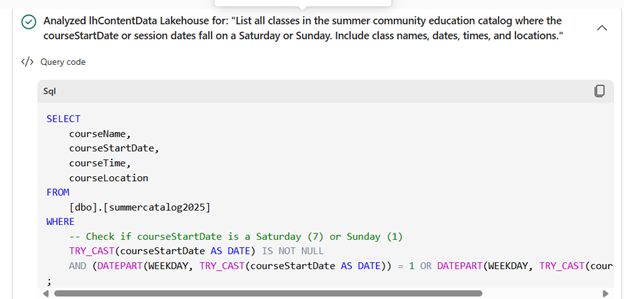
You can see that the agent figured out how to query for a specific day of the week. But I want the agent to know how to query or return a value for any day of the week. I will ask the agent to return a day of the week for all the classes:
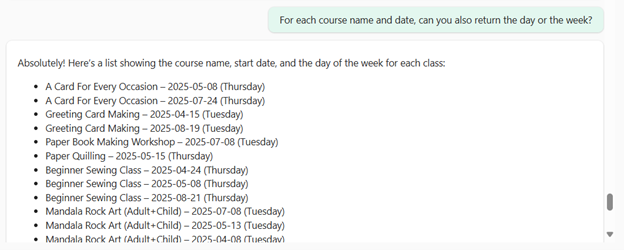
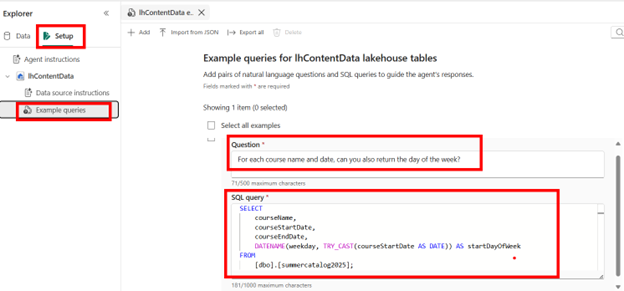
I will save this query in my example queries, in case others have the same question!
I then cleared the chat and asked more questions about days of the week
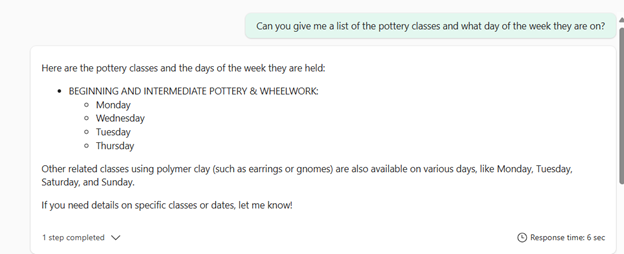
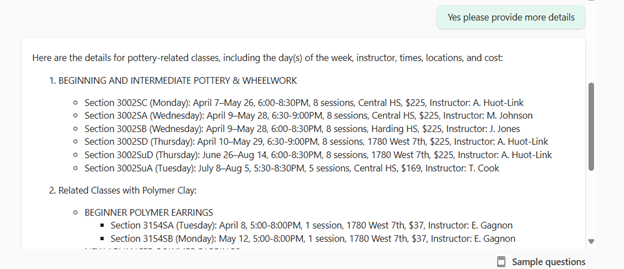
OK you can see I was having fun with that! I will leave it as-is for now, and I will publish my agent for others to use:
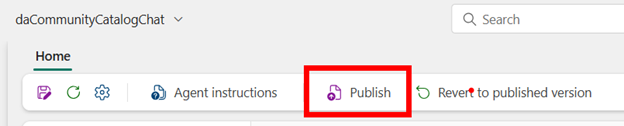
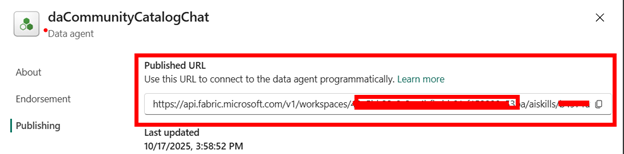
If there are other applications that will use the agent, they can leverage and call this API:
Use Data Agent in Power BI CoPilot
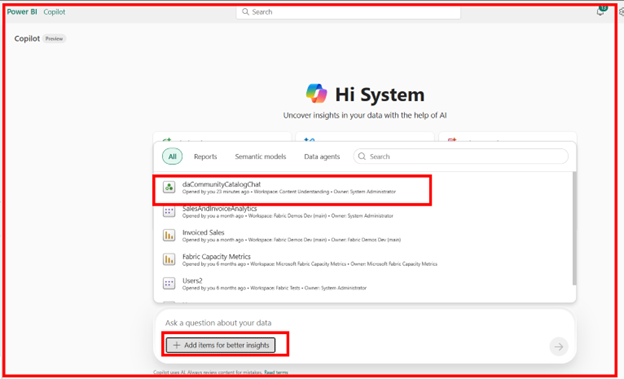
Now that my Data Agent is published, I can use this in Power BI Copilot! Start Power BI Copilot and click on the “Add items for better insights” and select the agent:
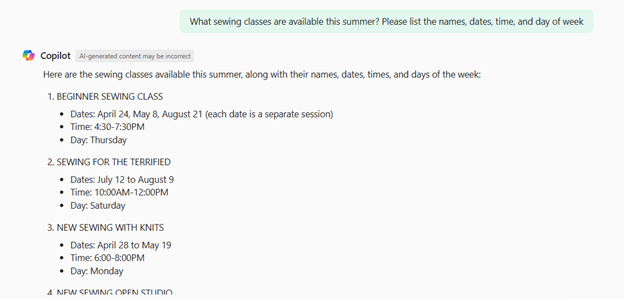
And start asking questions:
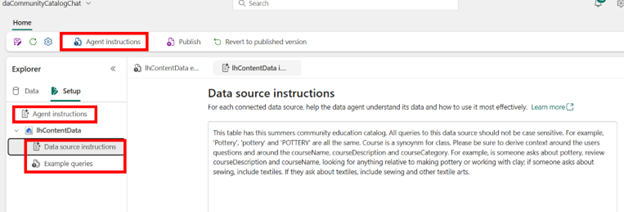
I can share the agent with others and easily modify it if they report that it’s not returning expected results. I can simply update the agent instructions, data source instructions, or add more example queries and then re-publish.
Conclusion
Microsoft Fabric provides a secure, scalable, and flexible foundation for leveraging your Azure AI Foundry solutions, enabling organizations to deliver AI-powered insights directly to Power BI users as well as 3rd party applications. This approach not only simplifies technical implementation but also enhances collaboration and accessibility, making advanced AI readily available to all.
References
Azure AI Foundry - Content Understanding REST API
Azure Key Vault - Get Secret REST API
Fabric Managed Private Endpoints Overview
Get Started with Variable Libraries