
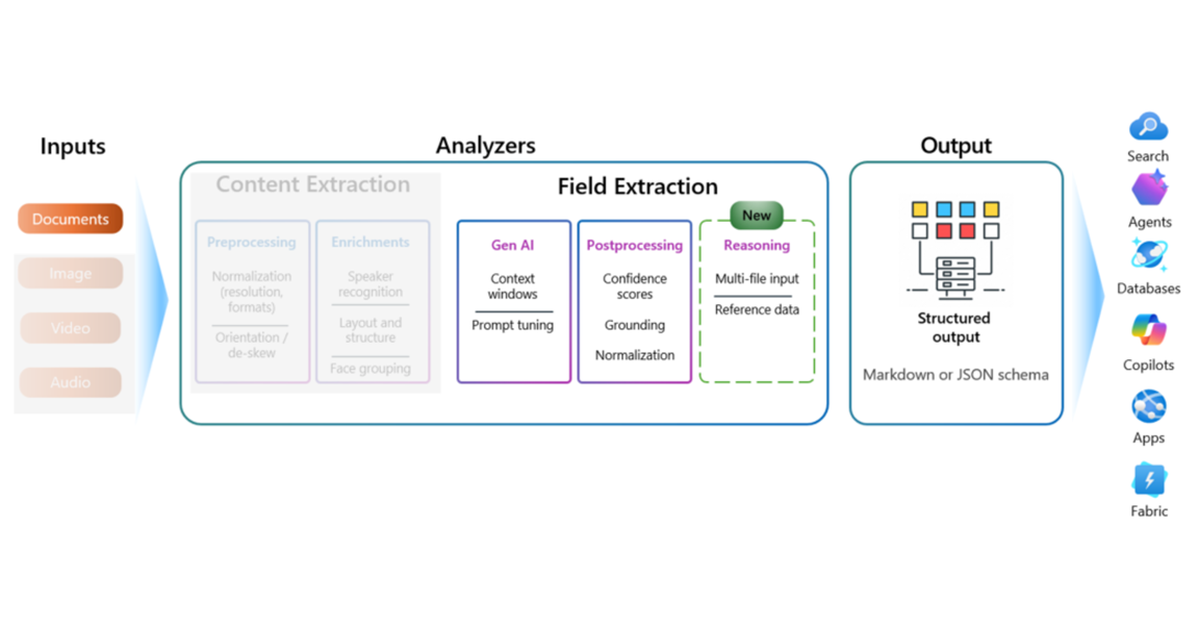
Extracting key field information from documents is a mundane task in pretty much every organization, such as check processing, invoice processing, purchase orders, etc. Azure AI Document Intelligence is the tool that often comes to mind for automation of document processing with both prebuilt and custom templates. However, when documents are very complex, without fixed fields and values, Document Intelligence may not produce the expected results.
Let’s take a real-world example: the PDF of a community education course catalog, like this one: Spring/Summer 2025 Adult and Youth Classes. When you open the course catalog, you will notice there is a cover page, a calendar, a table of contents, and other information I do not want to extract. I only want to extract the course information from the catalog:
- Course name
- Course description
- Instructor name
- Course section number
- Start date
- Start time
- End date
- Location
- Cost
… and load it into a database or lakehouse for my application to use.
As you look through the course information, you will notice that the course listings don’t completely follow the same format. A course may have multiple sections of it, with different dates and times:
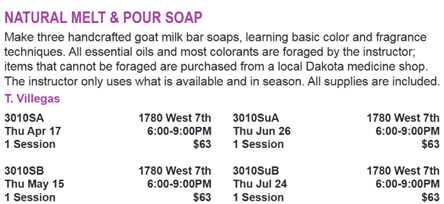
And sometimes there are multiple instructors for different course sections and note there is no end date, just the number of sessions:
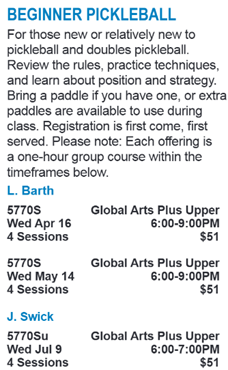
For my database or lakehouse table, I want a row by each course section number. With the course name and description being at the the course level, I somehow need to populate those fields for each row as well. I also need to get the instructor name either from the course level or from the course section level, depending on where it is located in the document. There is no course end date, but I’d like to have it calculated based on the course start date and the number of sessions.
To automate, data extraction by just labeling would be difficult. You could try defining a table layout in Document Intelligence, but it expects consistent columns and rows. You would have to label a lot of documents and the model would struggle with inconsistent layouts or nested data.
However, Azure AI Content Understanding is designed to handle exactly these kinds of challenges. Instead of relying on labeled training data and rigid templates, it allows you to describe what you want to extract using natural language.
With the Document Field Extraction capabilities of Content Understanding, you can define the fields you’re interested in—like courseName, courseLocation, courseStartDate and courseEndDate—and then use the field description to provide instructions (or prompts) to describe what defines the value for that field.
This means
- No need to label dozens of documents; instead, use natural language to describe how to extract the data
- Support for complex, unstructured layouts
- Ability to use calculations for field values
- Faster time to value, especially for dynamic or creative content
Getting Started with Azure AI Content Understanding
To start with Azure AI Content Understanding, you need an Azure AI Foundry Hub.
Within your Azure Subscription, go to Azure AI Foundry:

Create an Azure AI Foundry hub-based project in one of the supported regions:
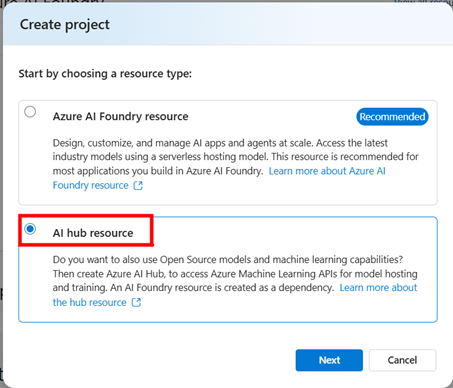
You will be directed to specify a Project Name and a Hub Name, then click Create.
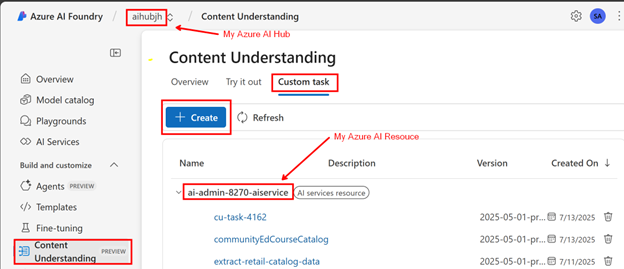
In Azure AI Hub, click:
- Content Understanding > Custom Task > Create
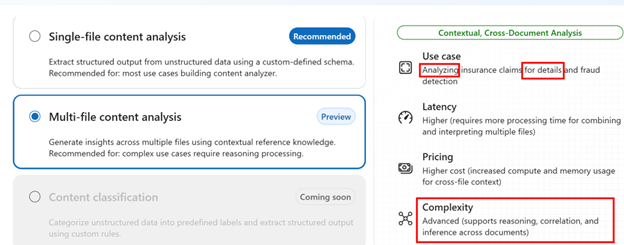
On the next screen, choose Multi-file processing for its advanced reasoning skills:
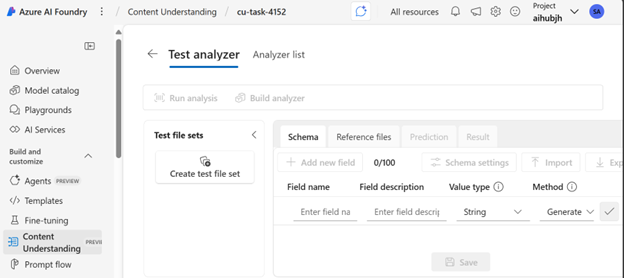
Define a Schema
Next, define a schema where you can enter:
- Field name
- Field description
- Datatype of each field
The field description is what makes this tool powerful. You can define exactly what and how to extract data.
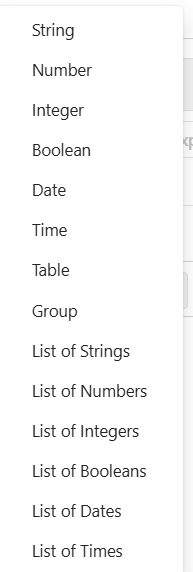
Data types can be:
- Tables
- Lists
- Scalar values
For my course extraction example, I chose a table field type and gave it very detailed information on what to extract as well as what to ignore. In my prompt, I specified that the actual unique key is the course section number, since a course may have more than one section. I provided detailed information on how to repeat the course name and description for each section.
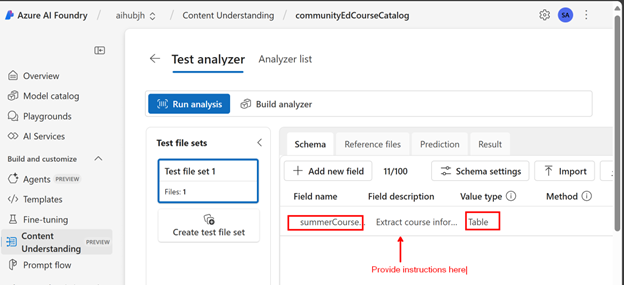
Extract course information from this catalog. The key is the course section number, which is 4 digits followed by 2 or 3 letters. Create a row for each course section number. The course name and description is above the course section information. There may be multiple sections for a course so populate the course name and description in each row. To help you link the course name and description to the course section, the first 4 digits of the course is the same for each course name and description. Each course section always has a location, date, time, number of sessions and price. The course may also have a section name, which would be immediately above the course section number. Ignore any other information such as general community education and table of contents.
I then created subfields in the table, and for each subfield, I provided descriptions:
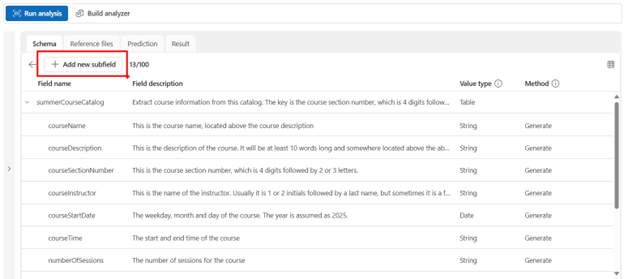
When defining the subfields, I used natural language to describe how to extract the data:
-
courseInstructor: This is the name of the instructor. Usually it is 1 or 2 initials followed by a last name, but sometimes it is a few words. It may be below the course section number or beneath the course description. In that case, use that instructor name for all descriptions.
-
courseEndDate: Compute the courseEndDate by taking the courseStartDate and adding the number of weeks to get the courseEndDate. For example, if the courseStartDate is August 1 and the number of sessions is 1, the courseEndDate would be August 1; if the number of sessions is 2, the course end date would be August 8; if the number of sessions is 3, the course end date would be August 15.
-
courseCategory: Above the course listings, there will be a header. It will never be the same as the courseName. This is the courseCategory. If you can’t find the Category, specify “Unknown”.
-
courseSectionName: Below the course description, and below the course instructor if it exists, and above the course section numbers, there may be a course section name. It will be 1 to 5 words. Include it is this if you find it otherwise leave this field as blank. 2 examples are Largo and Sweet Dreams under Alexander Oil Painting course name.
You can view or download the full schema here: Download Schema
And if you wish, you can import the file into your own Content Understanding project.
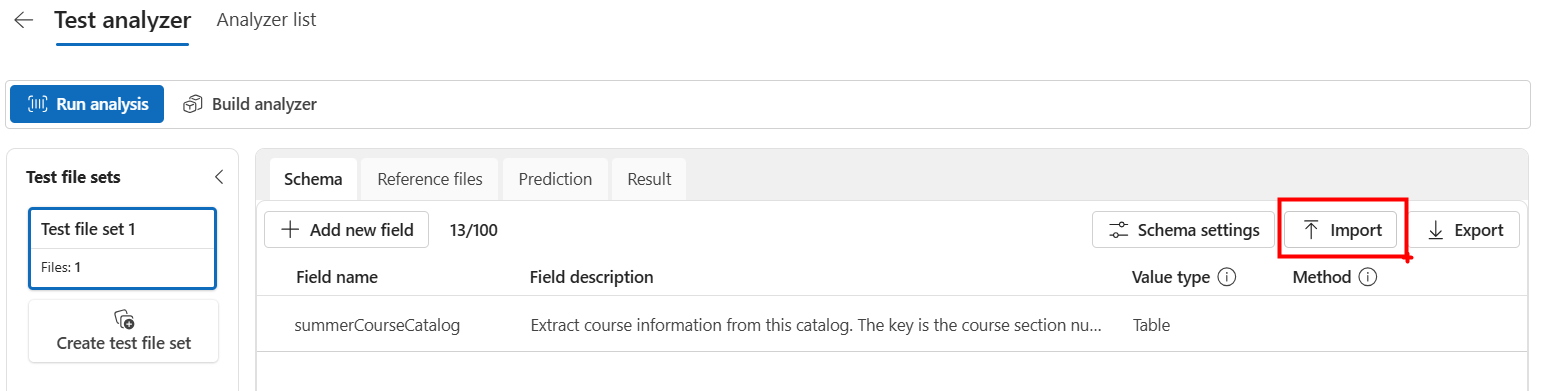
Test Analyzer
Next, upload at least 1 file. if you are following my example in your own environment, you can use one of these example files:
- Spring/Summer 2025 Community Ed Catalog - 6 pages(PDF)
- Spring/Summer 2025 Community Ed Catalog - 10 pages(PDF)
Click Run Analysis to build a Test Analyzer.
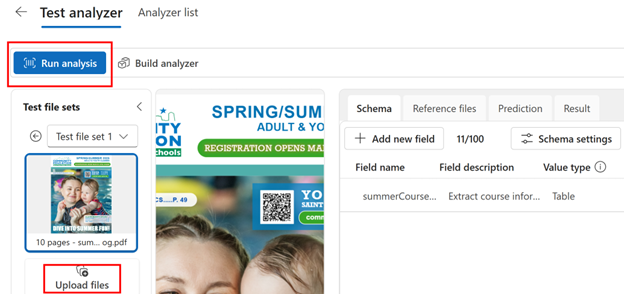
After running, check the Prediction tab — 70 rows were returned in my example. You can view the results in:
- List View (down arrow icon)
- Table View (grid icon)
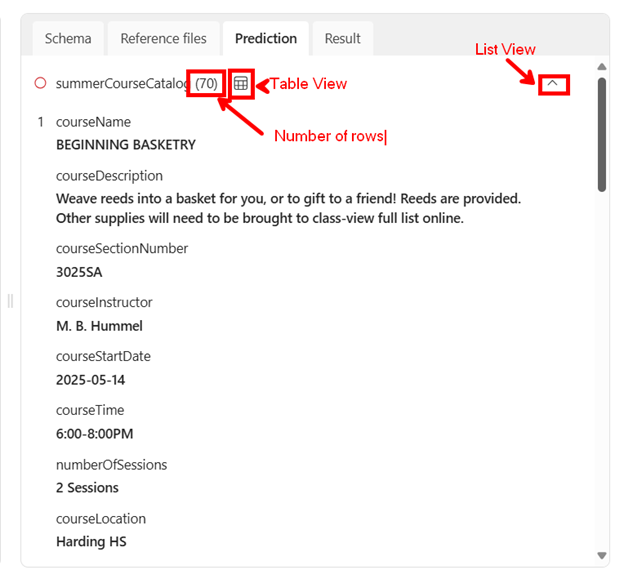
Review the results. If needed, adjust the schema or field descriptions and re-run the analyzer.
Deployment
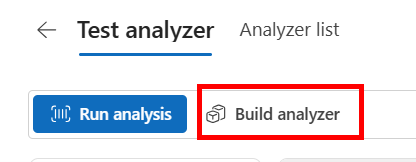
When satisfied, click Build Analyzer to create an endpoint and subscription key for your application.
Give your analyzer a name and description. Once the status is Ready, it is ready to use with your application
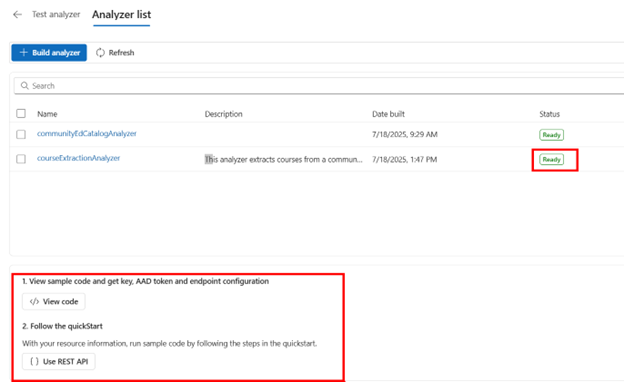
At the bottom of the screen, you’ll see sample Python code to call the endpoint and a link to the REST API documentation.
The sample code also provides the resource key, which you can use for authentication. This should be saved in Azure Key Vault for your application to authenticate to the AI Service.
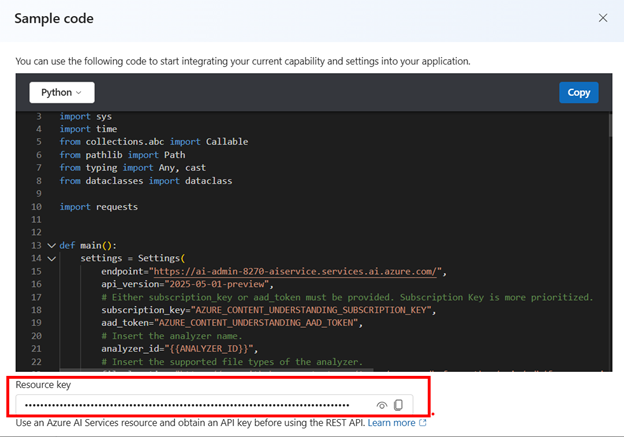
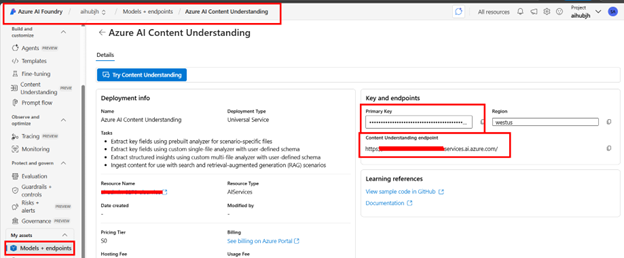
You can also get the subscription key and model endpoint from the Model and Endpoints section in Azure AI Foundry.
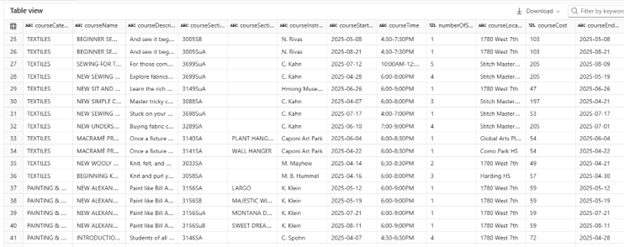
Below is example output to a dataframe:
In the next blog, I will show how to call the Azure AI Content Understanding endpoint and store the results in a database or lakehouse.
With Azure AI’s Content Understanding, field extraction becomes a game-changer — especially when you’re dealing with complex or unstructured documents that don’t follow a tidy, consistent form layout.
You can harness the power of Natural Language Processing (NLP) to intelligently extract names, dates, totals, and even calculated fields with minimal setup — regardless of document structure.
It’s:
- Smarter ✅
- Faster ✅
- More scalable ✅
…and it can save hours or even days of manual work!
Whether you’re working with menus, handwritten forms, catalogs, brochures, or any other semi-structured content — Azure AI Content Understanding helps you unlock the data inside.